Day60 for Chrome
Save any job to Day60 in one click
Found a job on a company's careers page? Click Day60 in Chrome, and the job opens in Day60 with the details filled in.
Day60 finds the four people closest to the hire, with verified work emails: the hiring manager, their boss, an internal champion and the recruiter. Each comes with their current title and LinkedIn profile.
Day60 for Chrome works in Chrome on a computer. Open getday60.com/chrome-extension there to add it.
How it works
- Step 1
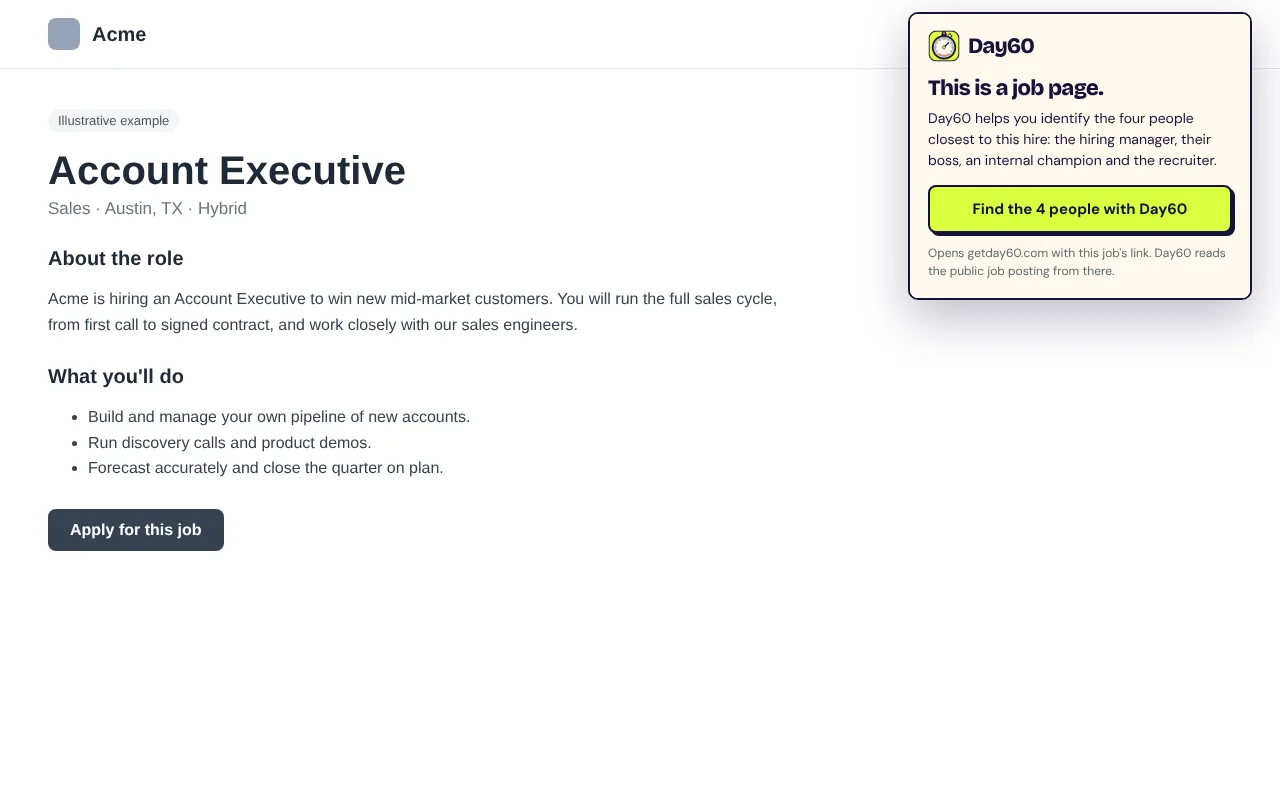
On a careers page: Click the Day60 icon, then Find the 4 people with Day60. Day60 opens with the job filled in.
- Step 2
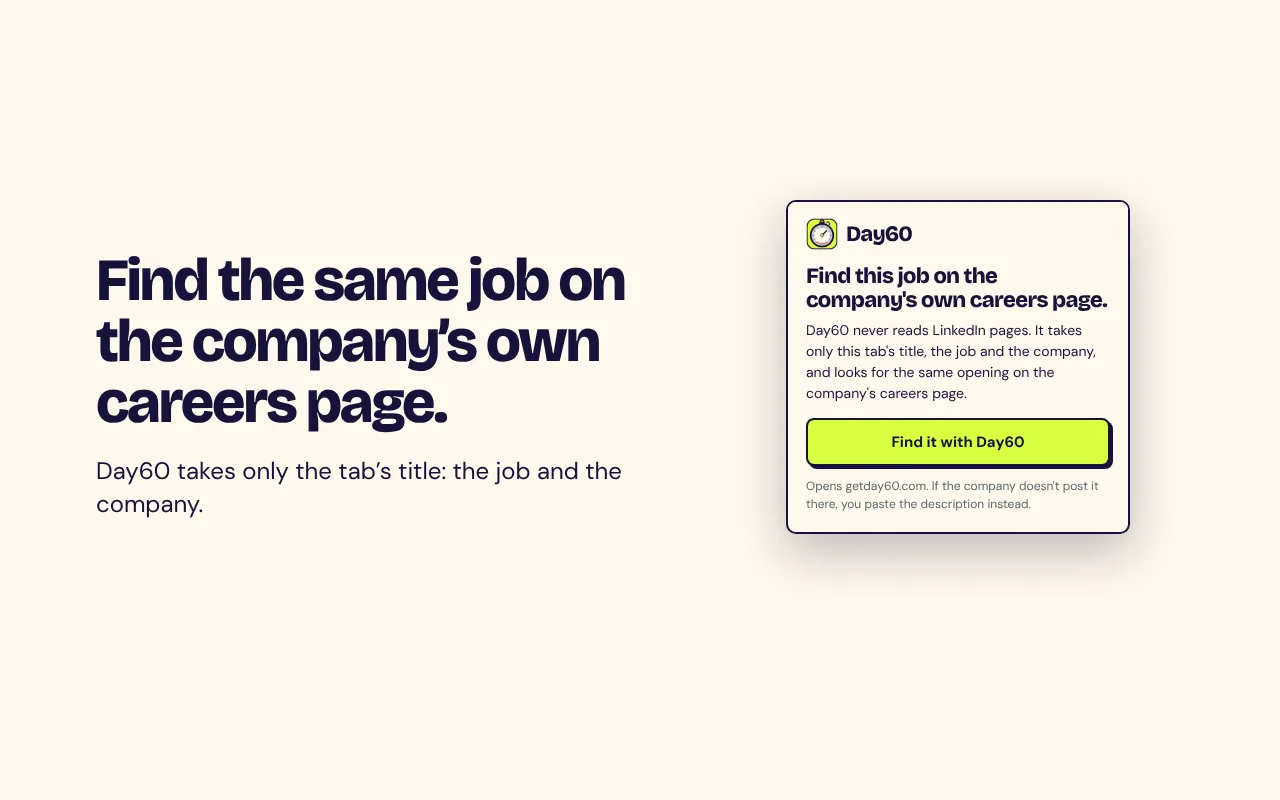
On a LinkedIn job: Day60 looks for the same job on the company's own careers page.
- Step 3
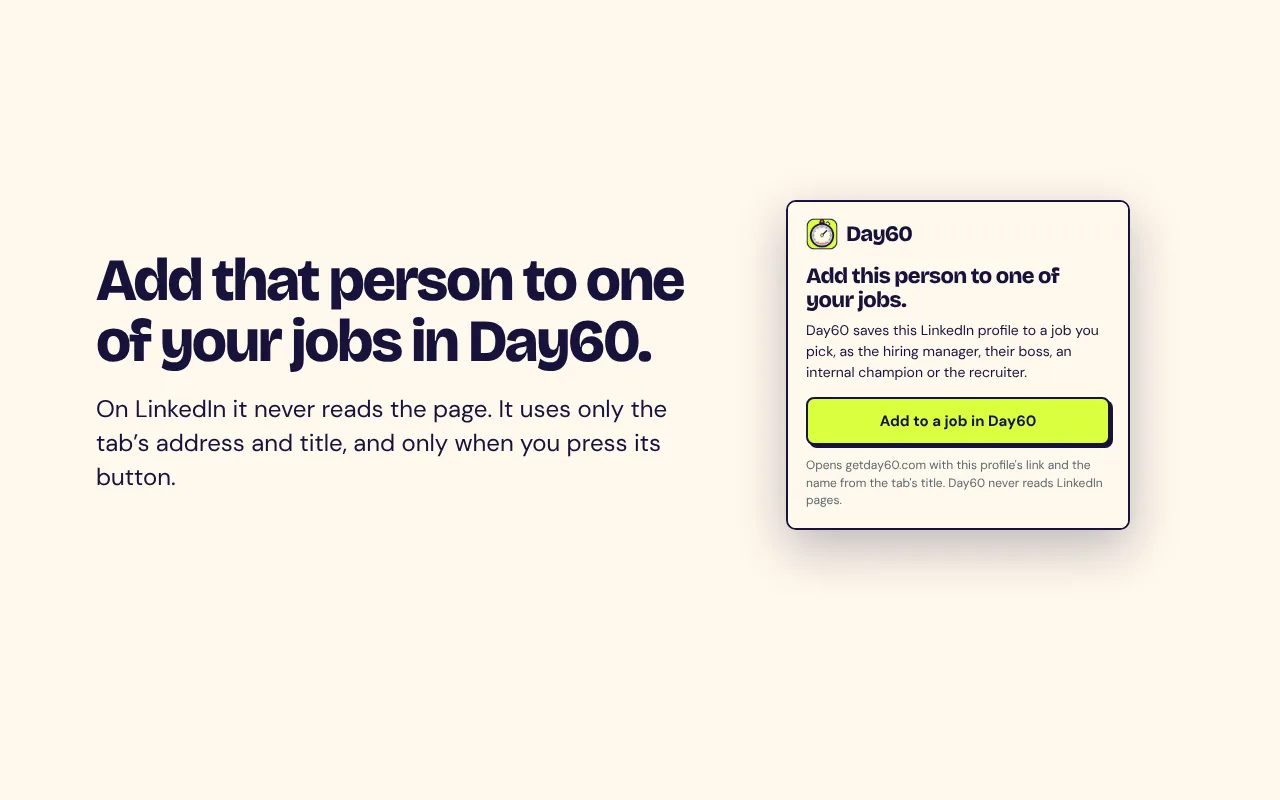
On a LinkedIn profile: Add that person to one of your jobs in Day60.


What it reads, and what it doesn't
- It works only when you click it, and only on the tab you're on.
- When you click it, it reads the tab's address. On pages that aren't on a known job board, it also checks one thing: whether the page has job posting data, yes or no.
- When you press its button on a job page that isn't LinkedIn, it reads that job's title, company, location and description from the page and sends them to Day60.
- On LinkedIn it never reads the page. It uses only the tab's address and title, and only when you press its button.
- It never fills in forms, applies to jobs or sends messages. You send every message.
- No analytics, and nothing is stored in your browser.
Details are in our Privacy policy.
Start my free sprint
Free. No card.